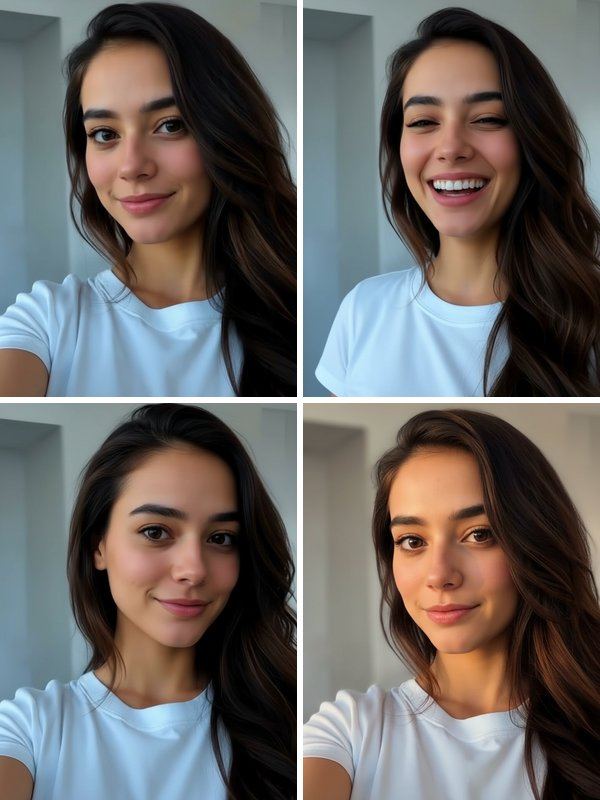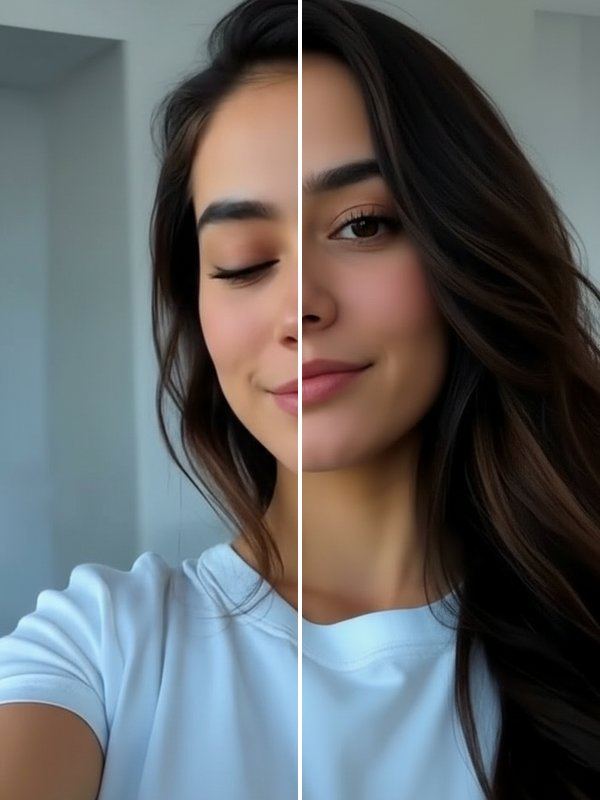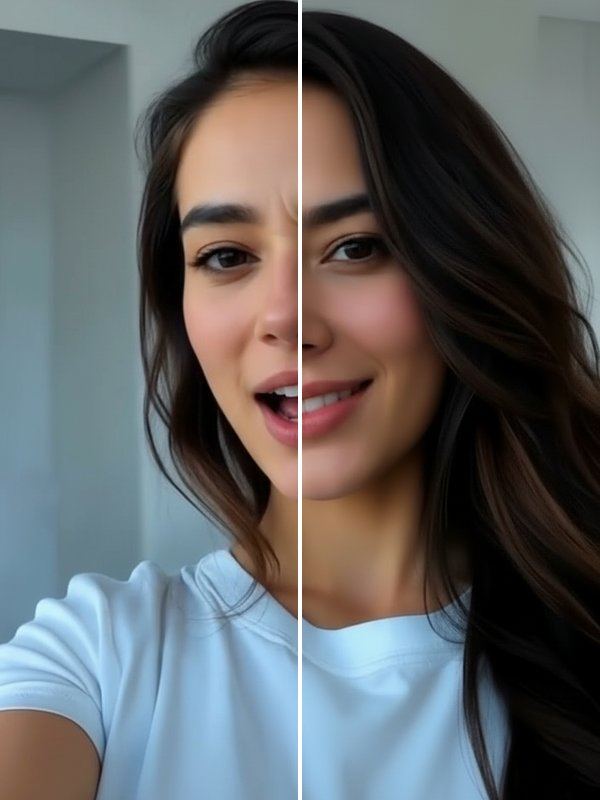


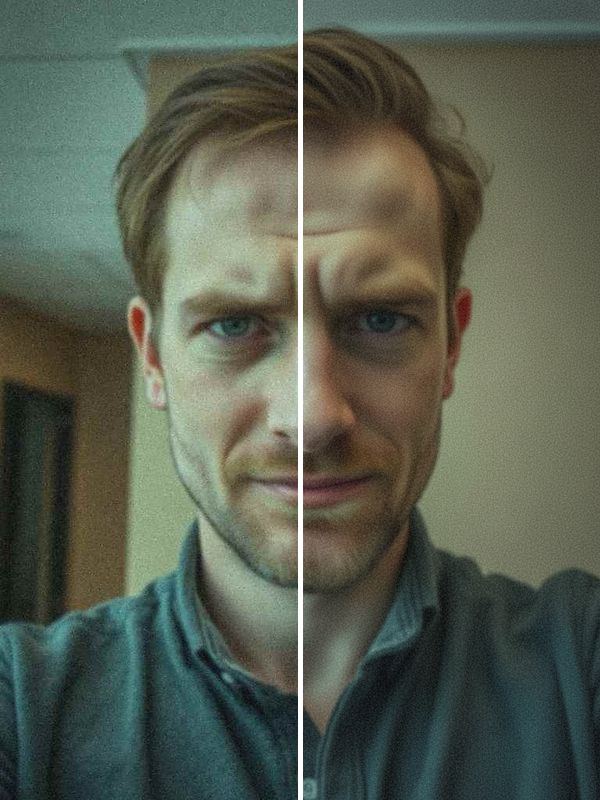
Photogenic is the all-round glow-up. HD Fix is for photos that are blurry or too dark, Golden Glow adds warm, flattering sunset light, and Studio Shot gives you clean, professional portrait lighting.
How to enhance a photo with AI
- On the Trends tab in Trendio, find the Photogenic row and choose a tool.
- Add the photo you want to improve; dim, blurry or dull is fine.
- Drag the slider to compare before and after, then save it.
Getting the most out of the enhancer
- Pick the tool that matches the problem: HD Fix for blur and darkness, Golden Glow or Studio Shot when the light is the issue.
- Photos of one person with a visible face give the cleanest result.
- Start from the original file rather than a screenshot or a heavily compressed copy from a chat app.
When the photo needs more than light
If the problem is the moment rather than the quality, Reshoot creates four new takes of the same photo, Open Eyes fixes a blink, and Natural Smile or Fix My Face rescue an awkward expression.
Questions and answers
Will the enhancer change my face?
No reshaping is applied: the tools aim to keep your features as they are and only improve light, sharpness and colour. Results are made by AI and can vary from photo to photo.
How much does it cost to enhance a photo?
Trendio is free to download, and each enhanced photo uses 1 credit. Get credits with a one-time pack or a weekly or monthly subscription; new subscribers get a discounted first week.
Can it enhance group photos or landscapes?
The Photogenic tools are made for photos of a person. They work best when one face is clearly visible.
Where does my photo go?
To make the result, your photo is uploaded and processed by AI. The privacy policy explains how it is handled.