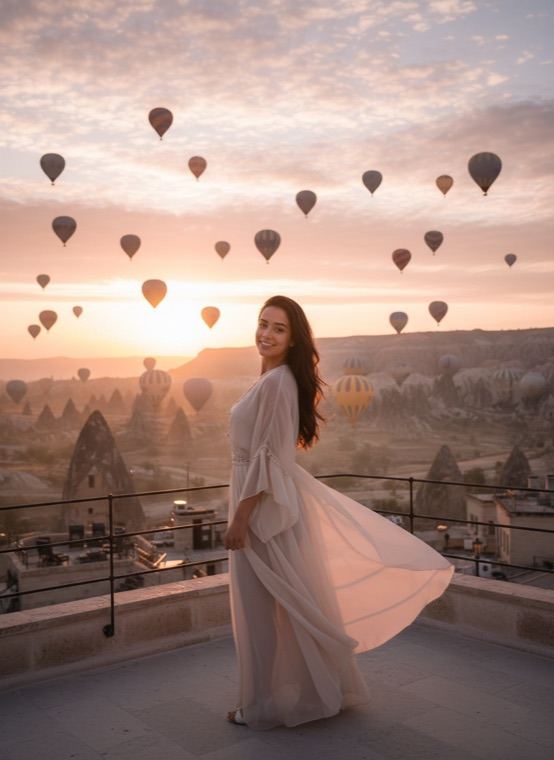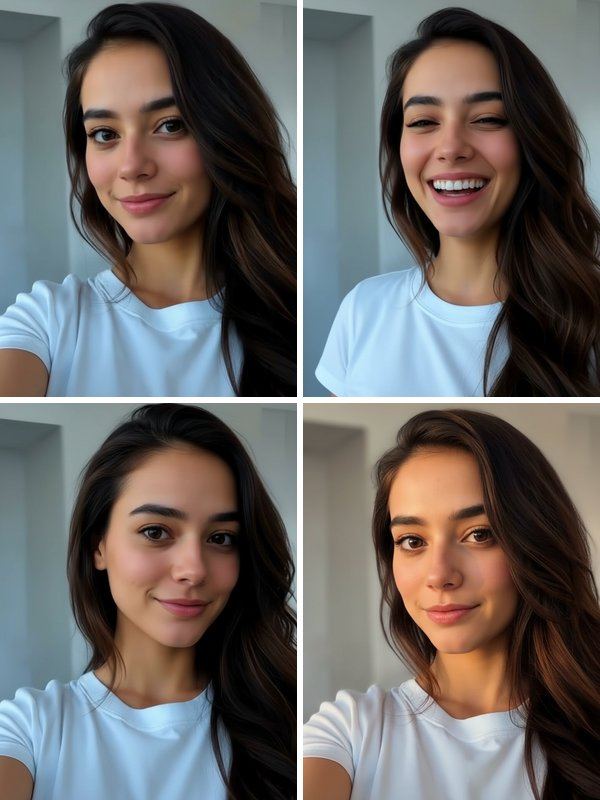
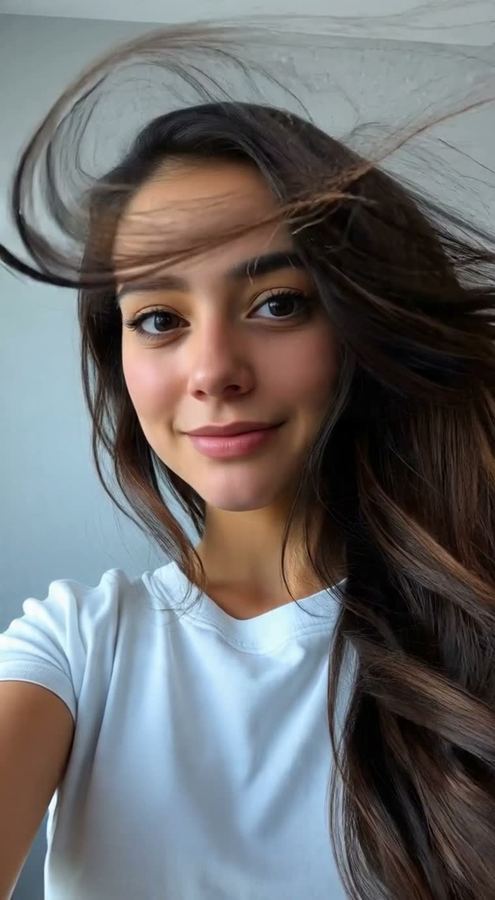
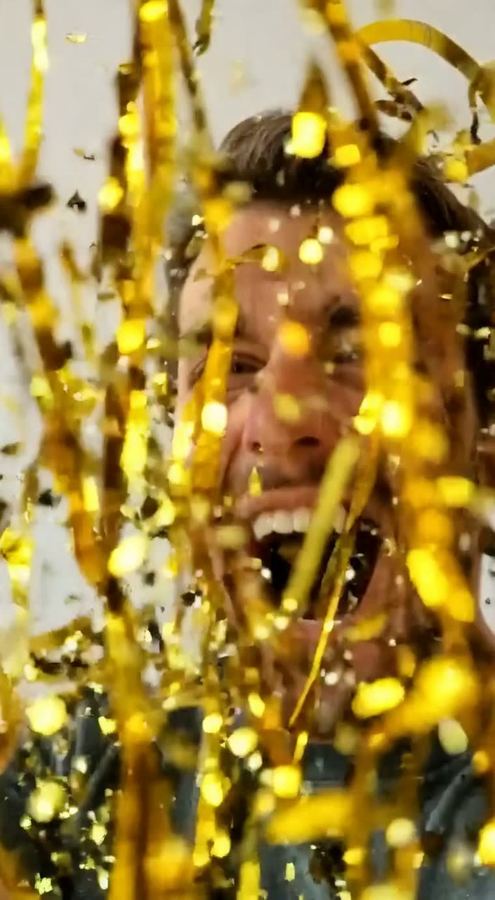
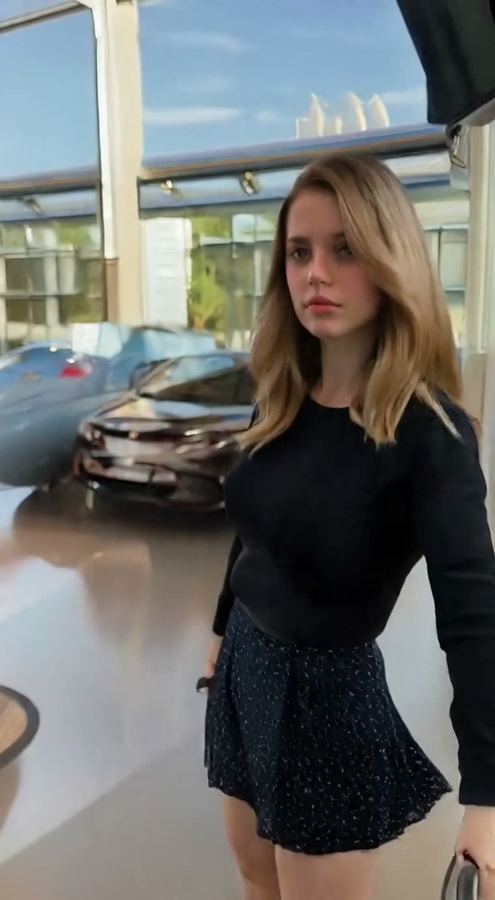
There are eight moves: Dance, Glow Up (a hair flip, then the smile), Hero Walk in slow motion, Cinematic Orbit with the camera circling you, Wind & Slow-Mo, Celebration with falling confetti, Epic Reveal that pulls back to the whole scene, and Living Photo, a still that gently breathes and blinks.
How to turn a photo into a video
- Open the Video tab in Trendio and stay on Photo to video.
- Pick a move and add a photo of yourself.
- Wait about a minute with the app open, then save or share the clip.
Tips for a smooth video
- Use a photo of one person, with your face and upper body clearly visible.
- Leave some space around you; moves like Epic Reveal and Hero Walk need room in the frame.
- Sharp, well-lit photos animate more convincingly than dark or blurry ones.
More video ideas
Already have a clip? The video editor restyles your own footage as anime, a 3D movie, claymation, a comic book or an oil painting, or adds snow, golden-hour light or cherry blossoms.
Questions and answers
How many credits does a video use?
A video uses more credits than a photo, and the app shows the exact cost before you start. Trendio itself is free to download; credits come from packs or a weekly or monthly subscription, with a discounted first week for new subscribers.
How long does it take?
Usually about a minute. Keep the app open while the video is being made.
Can I animate a photo with two people?
No. Every move animates the single person in the photo, and there are deliberately no styles that make two people hug or kiss.
Will the video look exactly like me?
The moves are designed to keep you recognisable, but videos are made by AI and results vary. A clear, front-facing photo helps.